How Quotes Work
Quote lifecycle, quote lines, approval state, PDFs, cloning, and conversion into Sales Orders
What a Quote Is
A Quote is the customer-facing offer before the operational Sales Order exists. It holds the Account, Contact, billing address, shipping address, close date, sales rep, customer context, approval state, payment-readiness context, and the customer-facing PDF output.
Quote lines are the commercial detail behind that offer. They carry the selected item, quantity, price, discount, line total, credit/revenue flags, item warnings, gateway context, fulfillment context, and setup signals that feed the quote summary, approval review, and PDF.
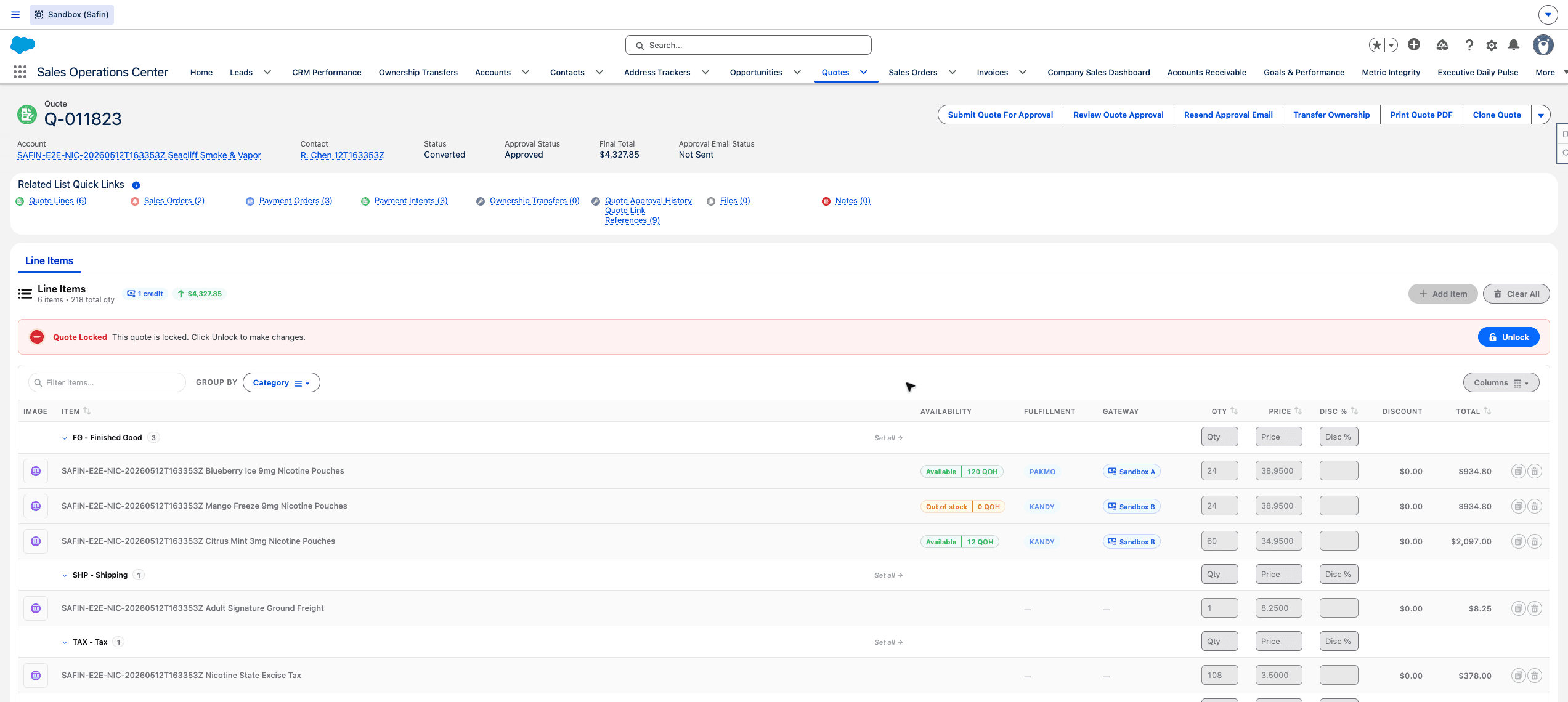
Safin dev sandbox Quote record showing the locked Line Items editor after approval and conversion.
Lifecycle
Create Quote
Start from the Account or Opportunity and select Create Quote. The creator is the header/context step, not the full line-editing workspace.
Use it to confirm:
| Area | What to select |
|---|---|
| Contact | The quote recipient and communication contact. |
| Billing address | Account default, saved address, or manual address. |
| Shipping address | Same as billing, account default, saved address, or manual address. |
| Channel/order context | The detected or selected order channel. |
| Close date | Expected customer decision date. |
| Template import | Optional existing quote whose lines should be copied into the new quote. |
| Notes | Internal notes and 3PL/warehouse instructions. |
After the quote is created, open the Quote record and use the Line Items editor to add or change items.
Quote Lines
Quote lines should be managed from the custom Line Items editor on the Quote record. Do not create raw Quote_Line__c records from a standard related list unless an admin explicitly directs it.
The editor supports the same item-selection flow used by Sales Orders:
| Field or signal | Why it matters |
|---|---|
| Item | Drives SKU, description, item group, category, availability, fulfillment behavior, and payment gateway context. |
| Quantity | Drives totals, stock promises, approval review, and conversion into Sales Order lines. |
| Price | Drives customer-facing totals and approval threshold behavior. |
| Discount % | Preserves the discount as structured data instead of hiding it in notes. |
| Credit/nonphysical flags | Keeps credits, shipping, service, labor, and adjustments out of the wrong fulfillment path. |
| Warnings | Shows item rules, blocked setup, missing route data, or configuration issues. |
Approval
Use Submit for Approval from the Quote record after lines and totals are final enough for review. The approval flow validates the quote and writes approval history.
Approvers use the review action, approval list, or Quote Approval dashboard. Rejected quotes should be corrected and resubmitted or cloned into a new offer, not edited around the approval history.
PDF and Customer Output
Use Print Quote PDF from the Quote record. The custom PDF uses quote header data, quote lines, terms, branding, and totals. If the PDF is wrong, fix the quote/contact/address/line data first, then regenerate the PDF.
Clone and Revise
Use Clone Quote when the customer needs a revised offer and the old quote should remain intact. Cloning preserves context and avoids overwriting submitted or approved history.
Clone is appropriate when:
| Situation | Reason |
|---|---|
| Pricing changed | Keeps the prior offer available for audit. |
| Customer changed quantities | Preserves the original proposal. |
| Approval was rejected | Keeps the rejected history tied to the original record. |
| A similar customer needs the same line set | Speeds up build while still requiring review. |
Conversion to Sales Order
Approved quotes can become Sales Orders through the supported quote-to-order path. The Sales Order should keep links back to the Quote and Opportunity so pipeline, revenue, payment, fulfillment, and reporting stay connected.
After conversion, normal operations move to the Sales Order. Do not keep changing the Quote to manage fulfillment, payment collection, invoice email, tracking email, or order status.
Last updated on